Understanding Your Website
Launch Call & Lesson
This page isn’t listed on your website, but it’s accessible to you for details on maintaining the page and how to edit different things.
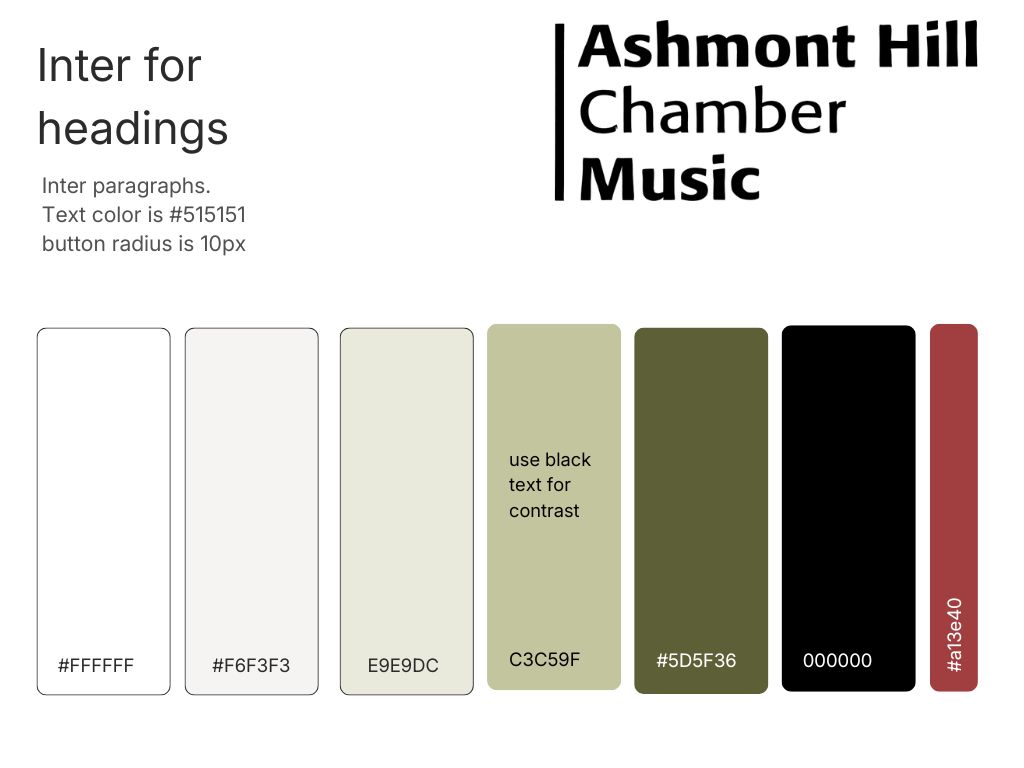
Branding Consistency
Concert image size: 1200×769 pixels (you can also make it smaller at that ratio. The goal is to upload images whose file size is no larger than 200-250kb.
Website Launch & Training Call – July 20
Meeting Purpose
Train the team on the new WordPress website and plan its launch.
Key Takeaways
- Launch Plan: The site will go live after Mary Beth updates the homepage blurb and a concert. Jane will then redirect the domain from Wix, a process taking 20 mins–3 days.
- Primary Workflows: All content editing is done in the WordPress admin:
Pagesfor static content andConcertsfor event details, which auto-populate the homepage and archive. - Automation: The Constant Contact integration is live, automatically adding new subscribers. A “Duplicate” feature will be added to simplify creating new concert seasons.
- Training Resource: This call’s recording and notes will be hosted on a hidden “About this website” page for reference.
Topics
Site Structure & Editing
- Hosting: ICD Soft provides the technical backend. Jane will manage it, notifying the team only for major updates.
- WordPress Admin: The main interface for all content management.
- Block Editor: The visual editor for pages and concerts.
Concert Management Workflow
- Adding a New Concert:
- Go to
Concerts→Add New. - Enter the title and main description in the editor.
- In the right-hand panel, set the
Featured Image(horizontal). - Write a concise
Excerpt(teaser text) for listings. - Select the correct
Category(e.g., “2026-2027 Season”). - Add the concert
Date and Time. - Paste the
Ticket URLto activate the “Get Tickets” button. - Optionally, add a
YouTube URLto embed a video.
- Go to
- Automated Display:
Constant Contact Integration
- Purpose: Automates adding new email subscribers from the website’s contact form.
- Status: The integration is live. Mary Beth connected the accounts during the call by pasting an authorization code.
- Next Step: Jane will add the sign-up form to the contact page and test it.
Design Decisions
- Footer Background: The Bach score image will be lightened to improve text readability.
- Fundraiser Events: The website will focus exclusively on concerts. Fundraisers will be managed via Constant Contact to control attendance.
Next Steps
- Mary Beth:
- Jane:
- Lighten the footer background image.
- Add a “Duplicate” plugin for concerts and create a tutorial video.
- Provide the standard image size for concert photos.
- Add the Constant Contact sign-up form and test it.
- Redirect the domain to the new site upon Mary Beth’s approval.
- Upload the meeting recording and notes to the “About this website” page.
Accounts and What They Do
There are three different places you’ll interact with your website. They each serve a different purpose.
1. ICDSoft Dashboard (Your Hosting Account)
This is where you manage your hosting account, icdsoft.com
Use this area for things like:
- Viewing your hosting plan
- Billing and renewals
- Managing your domain (if applicable)
- Accessing your website tools
Think of this as the front desk of your hosting account.
Most day-to-day website editing does not happen here.
2. ICDSoft Control Panel
The Control Panel manages the technical side of your website and is accessed through the ICDSoft Dashboard
You’ll rarely need to use it, but it includes tools such as:
- File Manager
- Email accounts
- Databases
- Backups
- PHP settings
- Website security tools
Think of this as the building’s mechanical room. It keeps everything running, but you generally don’t need to go in there unless you’re making technical changes.
3. WordPress Admin (Your Website)
This is where you’ll spend almost all of your time.
From the WordPress Dashboard you can:
- Add and edit pages
- Add concerts
- Upload photos
- Update menus
- Edit text
- Manage media
This is the part of the website designed for everyday use.
Log into it at ahchambermusic.com/wp-admin
Why Headings Matter
Think of headings as the outline of a document. They help readers quickly understand the structure of a page and help search engines understand the page’s main topic.
- Heading 1 (H1) is the title of the page. There should be exactly one H1 per page.
- Heading 2 (H2) sections divide the page into major topics.
- Heading 3 (H3) and below are used for subtopics within those sections.
For example:
H1: Understanding Your Website
H2: Accounts and What They Do
H3: 1. ICDSoft Dashboard
H3: 2. ICDSoft Control Panel
H3: 3. WordPress Admin
H2: Launch Call & Lesson
H2: Why Headings Matter
H2: Custom Code
H3: If you’d like to change…
This structure helps visitors scan the page and helps search engines understand what the page is about (in fact, it also helps with screen readers and accessibility).
Google uses headings as clues. A clear heading structure makes it easier for Google to understand that a page about “Clergy & Leadership” contains information about clergy, staff, wardens, and vestry members. This can improve how the page appears in search results.
When adding new content, choose headings based on the structure of the information, not simply because you like the size or appearance of the text.
Unlike headings, Paragraph 1, 2, and 3 do not create a content hierarchy. They are simply visual text styles. Choose the paragraph style that best fits the appearance you want, and use heading levels only when you are creating a new section or subsection of content.
About the Website’s Custom Code
Most of your website can be updated directly through the WordPress editor. You do not need to edit any code to make routine changes.
Some features of the website were customized with code to provide functionality that isn’t available through WordPress settings alone. This code is stored in the website’s child theme.
Examples of custom features include:
- The concert page layout
- The automatic Previous/Next concert links
- Styling adjustments for the concert listings
These customizations continue to work automatically—you don’t need to interact with them when adding or editing content.
If you’d like to change how one of these features works…
Some changes require editing the website’s code rather than using the visual editor. Examples include:
- Changing how concert pages are laid out
- Adding new functionality to the concert pages
- Making design changes that aren’t available in the theme settings
These are considered development changes rather than content updates.
If you decide you’d like to make these kinds of changes in the future, it’s best to work from this documentation or contact the original developer.
Sandbox
This is a spot you can use to try things out and know that you won’t break anythign important!